
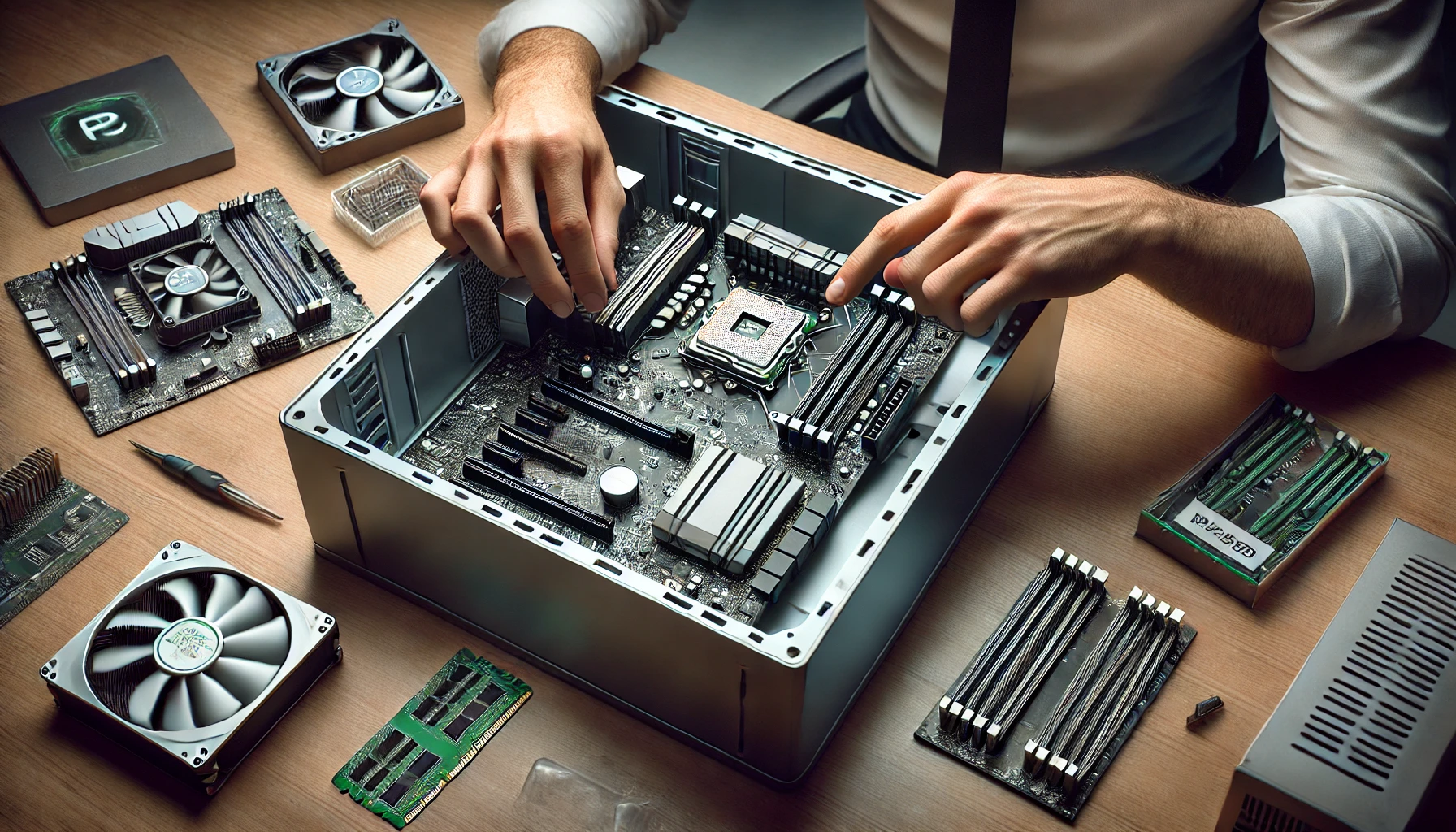
Building a work PC requires careful selection of components to ensure efficiency, reliability, and smooth performance. Unlike gaming PCs, where the GPU (graphics card) is the main focus, a work PC prioritizes processing power, memory, and storage to handle productivity tasks, office applications, and professional software.
Whether you’re setting up a home office, workstation, or business PC, choosing the right components will improve productivity and long-term usability. This guide will walk you through the key parts to prioritize when building a work PC.
1. Define the Purpose of Your Work PC
Before selecting components, consider what you’ll be using the PC for:
✅ Basic Office Work & Web Browsing – Email, spreadsheets, documents, and online meetings.
✅ Programming & Development – Coding, compiling, running virtual machines.
✅ Graphic Design & Video Editing – Photoshop, Illustrator, Premiere Pro, and rendering tasks.
✅ Data Analysis & Business Applications – Excel, databases, financial modeling.
Each use case requires different levels of performance, so selecting the right parts is crucial.
2. Prioritizing the Right Components
1. Processor (CPU) – The Most Important Component
A fast and efficient CPU is essential for multitasking and handling work applications smoothly.
✅ Best Budget CPUs (Office & Light Work)
- Intel Core i3-13100 – 4 cores, great for general office tasks.
- AMD Ryzen 5 5500 – 6 cores, handles multitasking well.
✅ Best Mid-Range CPUs (Programming & Business Use)
- Intel Core i5-13400 – 10 cores, ideal for productivity.
- AMD Ryzen 7 5700X – 8 cores, great for work and light content creation.
✅ Best High-Performance CPUs (Creative Work & Heavy Multitasking)
- Intel Core i7-13700K – 16 cores, excellent for video editing and rendering.
- AMD Ryzen 9 7900X – 12 cores, powerful for professionals.
For a workstation or professional setup, prioritize a multi-core processor to handle demanding workloads efficiently.
2. RAM – Ensuring Smooth Multitasking
The amount of RAM (memory) determines how many applications you can run simultaneously without slowdowns.
✅ Recommended RAM Based on Workload:
- 8GB RAM – Basic office tasks, email, and web browsing.
- 16GB RAM – Ideal for multitasking, programming, and light creative work.
- 32GB+ RAM – Essential for video editing, 3D modeling, and data-heavy applications.
For best performance, use dual-channel RAM (2x8GB or 2x16GB) instead of a single stick. If your work involves virtual machines or heavy data processing, consider 32GB or more.
3. Storage – Fast and Reliable Drives
A fast SSD (Solid-State Drive) is one of the best upgrades for a work PC, dramatically improving boot times, file access, and software performance.
✅ Best Storage Options:
- 500GB NVMe SSD – Minimum for smooth performance.
- 1TB NVMe SSD – Ideal for most workstations.
- 2TB HDD (Optional) – For large file storage and backups.
For business PCs, consider automatic backups and cloud storage solutions for extra data security.
4. Motherboard – Choosing the Right Features
The motherboard determines your PC’s connectivity, upgrade potential, and stability.
✅ Key Features to Look For:
- Wi-Fi and Bluetooth support (if needed).
- Enough USB ports for peripherals.
- M.2 slots for high-speed SSDs.
- RAM expansion (at least 2 or 4 slots).
✅ Best Budget & Mid-Range Motherboards:
- Intel B660/B760 (for Intel builds).
- AMD B550/B650 (for Ryzen builds).
If you don’t need overclocking, a mid-range motherboard with good connectivity is sufficient.
5. Power Supply (PSU) – Ensuring Stability
A reliable power supply is essential for system stability and longevity.
✅ Best PSU Choices for Work PCs:
- 500W 80+ Bronze – Basic office work.
- 650W 80+ Gold – Mid-range productivity builds.
- 750W 80+ Gold – Workstations with dedicated GPUs.
Choose a trusted brand like Corsair, EVGA, or Seasonic for better reliability and energy efficiency.
6. Graphics Card (GPU) – Is It Necessary?
For general work PCs, a dedicated GPU is not required because modern CPUs have integrated graphics.
✅ When You Need a Dedicated GPU:
- Graphic Design & Video Editing – RTX 3060, RX 6700 XT, or better.
- 3D Modeling & CAD Work – RTX 4070 or professional Quadro cards.
- Multi-Monitor Setup – A GPU helps manage multiple displays smoothly.
If you’re just working with office applications, the integrated graphics on Intel and AMD CPUs are good enough.
7. Cooling & Case – Keeping the System Cool
A work PC should be quiet and well-ventilated. Choose a case with good airflow and dust filters.
✅ Best Cooling Options:
- Stock coolers (good for office use).
- Aftermarket air coolers (for lower noise).
- AIO liquid cooling (for high-performance workstations).
For silent operation, look for cases with sound-dampening panels.
8. Peripherals & Accessories – Enhancing Productivity
✅ Monitor:
- 24” 1080p (Standard Work Use).
- 27” 1440p (Better Productivity & Multitasking).
- Dual Monitor Setup (For Professionals).
✅ Keyboard & Mouse:
- Mechanical keyboards improve typing comfort.
- Ergonomic mice reduce wrist strain.
✅ Headphones/Webcam:
- Good for video calls and online meetings.
For coding, spreadsheets, and creative work, a large or dual-monitor setup is highly recommended.
3. Optimizing Your Work PC for Maximum Efficiency
After building your PC, optimize it for productivity:
✔ Enable XMP (for full RAM speed) in BIOS.
✔ Keep drivers updated (especially for graphics and network cards).
✔ Set up cloud storage and backup solutions (Google Drive, OneDrive).
✔ Use software like Windows PowerToys for better multitasking.
A well-configured system ensures faster performance and fewer interruptions.
Conclusion: The Best Work PC for Your Needs
To build the best work PC, prioritize:
✔ A strong CPU for fast processing.
✔ At least 16GB RAM for smooth multitasking.
✔ An NVMe SSD for faster performance.
✔ A reliable power supply and cooling solution.
✔ The right peripherals for efficiency and comfort.
By focusing on these key components, you’ll create a work PC that enhances productivity, reliability, and long-term usability.